Subscriptions
In WISPGate, a Subscription within the Internet Service Provider (ISP) context represents a customer or subscriber who receives services. Each Subscription in WISPGate contains vital customer-related information, including contact details, organization details, service plan(s), billing information, and payment history.
When an ISP creates a Subscription for a customer in WISPGate, they gain ease of access to manage the customer's subscription and billing details, monitor usage, and track service history. This functionality enables them to handle service upgrades, downgrades, and cancellations, and efficiently address customer support requests.
Subscriptions serve as a centralized hub for ISPs to effectively manage all aspects of their customer relationships, including aspects of sales, billing, and support. Using the Subscription management feature, ISPs can easily improve their operations and enhance the overall customer experience.
To create a Subscription: - Navigate to Administration - Select Subscription - Click the Add Subscription button - Add subscription from the dropdown next to the Add subscription button - Select desired option as Import from Excel, Export to CVS, or Export XLSX - Import from Excel option to add subscriptions from an Excel file - Export to CVS or XLSX to export your subscription to either CVS or XLSX as per your need.
BASIC INFORMATION - Fields with () are mandatory as marked in yellow. - Select Contact (Ensure you already have contacts created in WISPGate) ()

- Select Organization (Ensure you have previously added Organization)
- Enter the Subscription Name (*)
- The unique ID is automatically generated (*) The service contract is only available once it has been added
- Select Status to indicate the subscription is “Active” if the subscription is available for use, “Inactive” if the Subscription is available for use but is currently not active, “Suspended” to disallow or deactivate the subscription for a while, “Cancelled”, or “Completed” (indicating the state of the subscription is closed). (*)
- Select an Engineer to manage the Subscription (*)
- Notification Levels are automatically generated (always set to Now)
- Add a description, then click Save to save the subscription.
- Click Save to save the subscription at once or click the dropdown next to Save to save and repeat the entry process.
- The Save & New means that the current entry will be saved and the form will be empty for new entry
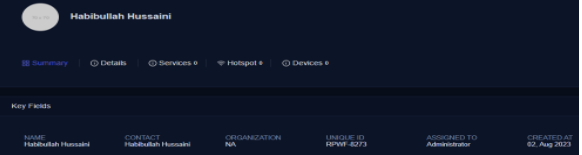
If all instructions were closely followed, your subscription should display as shown below

Subscription Inner Page
The Subscription Inner Page provides a comprehensive view of the subscription with detailed information.
Summary: This tab provides an overview of the subscription, including the associated organization, Unique ID, the entity to which it is assigned, activities, touchpoints, and other relevant details.

Details: In this section, you can find even more vivid information about the subscription, such as billing details, service information, hardware specifications, and other relevant information.

Services: The total number of services associated with the subscription is displayed here. Under this section, you can access specific details like associated IPs, PPPOE username, QOS Mode, status, and more.

Hotspot: This section presents information about the total number of hotspot subscriptions related to the main subscription. It displays relevant details associated with each hotspot.
Devices: The total number of devices linked to the subscription is showcased under the Devices tab. This section allows you to explore the details of each device.